Spreadsheets have been the go-to tool for organizing data since the 1970s. Today, digital marketers rely on them for everything from budget tracking to campaign planning, including building UTM-tagged URLs.
In this guide, we’ll walk through what a UTM builder spreadsheet does, share our top spreadsheet templates for generating tracking links, and show you a better alternative when your sheet gets too messy to manage.
How to Use a UTM Builder Template
UTM spreadsheet templates don’t have to be DIY projects. Let’s break down how to use one effectively with our own builder as an example. Once you learn to use UTM parameters correctly, your analytics data becomes far more actionable.
UTM Spreadsheet Template for Google Analytics URLs
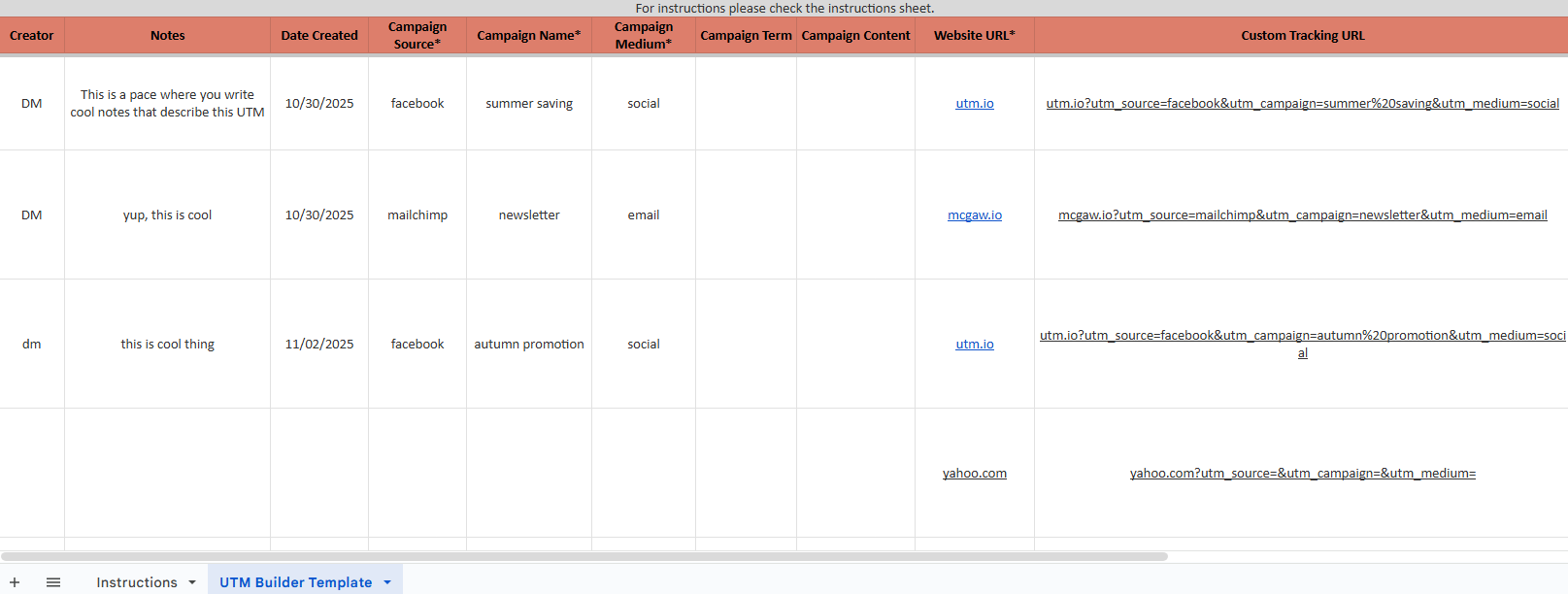
Get the UTM sheet template here →
Our tracking template is flexible enough to fit all your campaign links, enabling your team to use it easily. There’s a single template that applies to all marketing campaigns—not separate tabs for different channels.
A good UTM builder spreadsheet templates should always include instructions for marketers. Ours provides a dedicated tab with tips for building links correctly.
Here’s how to use it:
Step 1: Fill in the campaign name, campaign source, and campaign medium cells.
These three fields align with Google’s Campaign URL Builder and are required for campaign attribution in analytics. If they’re left empty, the URL itself will still work, but GA4 won’t attribute the session to a campaign. We mark each required field with an asterisk so you don’t miss them.
- Source represents where the user came from (Facebook, newsletter, Google, etc.)
- The UTM campaign parameter identifies what effort you’re promoting—promo names, taglines, or seasonal descriptions work well
- Medium refers to the channel type: social, email, cpc, display, and so on
Step 2: Enter your website URL—that’s your landing page minus any tracking parameter values.
Step 3: Document your work to help teammates and your future self. Enter the creator’s name, any notes about your logic, and the date you started using the link.
We highly recommend filling these columns to keep records organized. You won’t have to rely on memory.
Step 4: Fill in campaign content and campaign term if available. These are optional but help gather more intel.
- Content lets you identify what placement or creative drives clicks (image, headline, footer)
- Term comes from paid search and defines keywords you’ve bid on—also useful for A/B testing ad variations
Step 5: Copy the custom tracking URL from Column J.
Following our example with UTM.io as the base URL, you’ll have a complete tagged link ready to use.
What Does a UTM Builder Spreadsheet Do for Campaign Tracking
A UTM spreadsheet reduces the workload for digital marketing teams running multiple campaigns across channels, streamlining UTM tagging across every touchpoint. Without one, you’re left digging through old notes and previous ads trying to remember which UTM parameters you used last time.
Using a semi-automated URL builder in Google Sheets elevates your UTM tracking efforts by helping you measure campaign results while staying organized. Here’s what a UTM Google Sheet helps you accomplish across common use cases:
- UTM-tagged links for each campaign. A UTM generator helps marketers create tagged links for Google Ads, organic social, paid social, display ads, email, or iOS and Android app promotions – and it’s fast to use. The UTM codes then show in analytics tools like Google Analytics or similar platforms right out of the box.
- All campaign URLs in one place. A UTM organizer lets you track complete URLs in one spreadsheet, providing a single reference point and quick insight into your tagging history. This becomes a double-edged sword as your link volume grows and the sheet inevitably gets messy.
- Clear procedures. Including an instruction tab ensures the template is easy to use. It also gives you access to Google Sheets’ revision history, allowing you to track changes over time.
- Consistency. It’s easier to segment and analyze traffic when you keep things consistent. If your team adopts the spreadsheet and follows the same naming conventions, your data stays accurate and reporting becomes simple to generate.
Format and Naming Convention Best Practices
One essential point: keep your resulting UTM links consistent. Agree on format and naming conventions within your team, then stick to them. Otherwise, you’ll constantly fix campaign reporting data.
Two key concepts:
- Lowercase: No random uppercase letters. Analytics tools treat “Facebook” and “facebook” as two different sources. Consistent validation of your parameters prevents these reporting headaches.
- Dashes: Use “summer-savings” instead of “summer savings.” In comparison to spaces, dashes are easier to read in reporting.
When you use the full UTM.io tool, automations help you get conventions right automatically. But whether you use our platform or a spreadsheet, double-check your work.
UTM.io homepage.
What if Spreadsheets Are Not Enough?
These UTM builder spreadsheet templates cover the basics, but as you progress into advanced marketing, your tagging sheet requires more customization.
Updating a UTM spreadsheet frequently becomes painful. Building URLs manually through concatenation formulas requires precision, and mistakes compound over time. It requires significant time and maintenance. At first, this seems manageable. As you add more campaigns and involve more team members, the process gets complicated.
Not all marketers are spreadsheet experts or tracking experts. Non-technical individuals find it hard to maintain the URL builder sheet without mistakes, leading to inaccurate analytics data. Even tech-savvy teammates new to your organization usually struggle initially.
If you run an advanced team, consider using robust UTM software that lets you configure and organize your links at scale. UTM.io makes creating UTMs easier thanks to workflows we’ve built specifically for this use case.
You’ll enjoy more nuanced reporting while spending less time building links. UTMs are more accurate when they’re quick to build and when you have a tool that prevents user error.
Here’s what you can do in UTM.io that no spreadsheet offers:
- Save frequently used parameters in a dropdown
- Create separate workspaces for different projects
- Create and use custom URL parameters beyond the standard five
- Set up dynamic variables that automatically populate links
- Use a branded link shortener or integrate with services like Bitly to shorten URLs
- Access UTM Training resources
- Give team members dedicated permission tiers
- Speed up link building with our Chrome extension
UTM URL builder website.
Over to You
UTM.io simplifies your life as a marketer while creating better results. If you want higher data accuracy that reflects well on campaign performance, you need something more than a spreadsheet.
Our platform helps you generate consistent, error-free tracking links at scale. Tag your URLs correctly the first time, track everything in one dashboard, and finally say goodbye to messy spreadsheets.